How to Check If a URL Is Indexed by Google
Most guides on this topic treat "check if a URL is indexed" as a single question with a single answer. It isn't. A Google index checker does different things depending on whether you own the page you're checking — and picking the wrong method wastes time or gives you an unreliable result.
If you own the page, Google Search Console gives you the most accurate answer available — crawl status, indexing errors, canonical selection, and the ability to request indexing directly. If you don't own the page — a backlink, a client link, a link you've purchased or earned on a third-party site — Google Search Console can't help you at all. You need a different approach.
This guide covers all four practical methods, explains the important limitations of each, and gives you a decision framework so you can pick the right one for your situation immediately.
One thing this guide will not tell you: that Google Cache is a useful way to check indexing. Google removed the cache feature entirely in early 2024. Any guide still listing it as a method is outdated.
The two use cases — and why they need different tools
The search intent behind "google index checker" splits into two very different situations, and using the wrong tool for either wastes time or gives you the wrong answer.
Use case 1: Checking a page you own or control. You've published a new article, migrated a site, or updated a page and want to know whether Google has indexed it. You have access to Google Search Console for the property. This is the straightforward case — GSC URL Inspection is the right tool, it's free, and it gives you the most accurate possible answer.
Use case 2: Checking URLs you don't own or control. These are backlinks pointing to your site — guest posts on other publishers' sites, links you've built through outreach, niche edits, web 2.0 properties, links delivered by a supplier, or any URL on a domain you don't manage. You cannot add these sites to Google Search Console. You need a method that works without property ownership.
This second use case is where most SEOs spend most of their time, and it's the one that gets the least attention in general guides. Knowing your own pages are indexed is necessary but not sufficient — if your backlinks aren't indexed, they're passing no ranking value regardless of how well your own pages perform.
Which method should you use? A decision framework
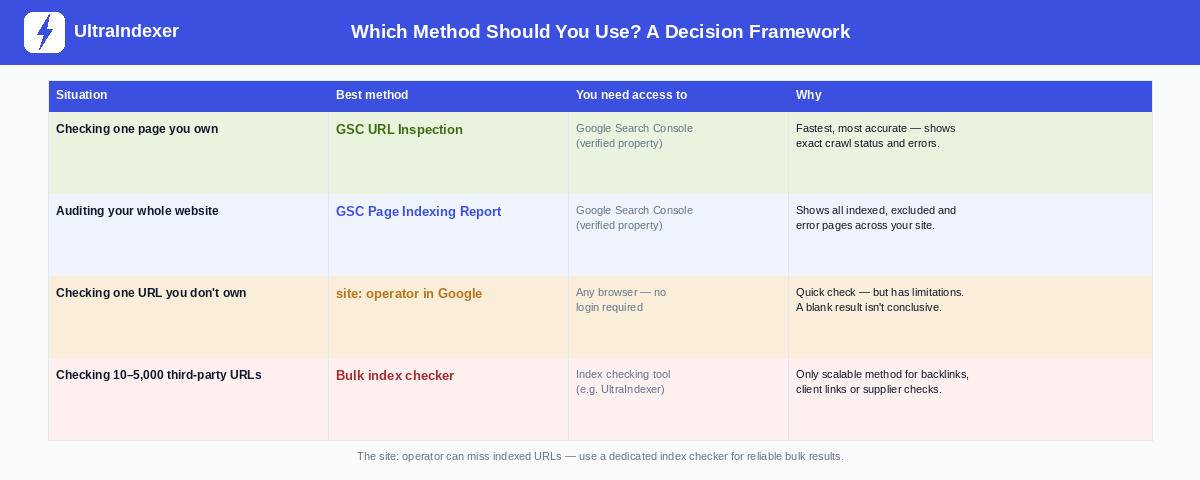
The table above covers the four practical situations. The rest of this guide goes through each method in the order you're most likely to need it.
Method 1 — GSC URL Inspection (for pages you own)
Google Search Console's URL Inspection tool is the most accurate way to check the indexing status of a page you control. It shows you Google's indexed version of the page, not a guess based on search results — which means it can tell you things the site: operator cannot, including why a page isn't indexed, when it was last crawled, and what Google sees when it renders your page.
How to use it
Open Google Search Console and select the property. Paste the complete URL into the search bar at the top — include the full address with https://. Press Enter and wait for the analysis to complete. The result appears within a few seconds.
Understanding the three status outcomes
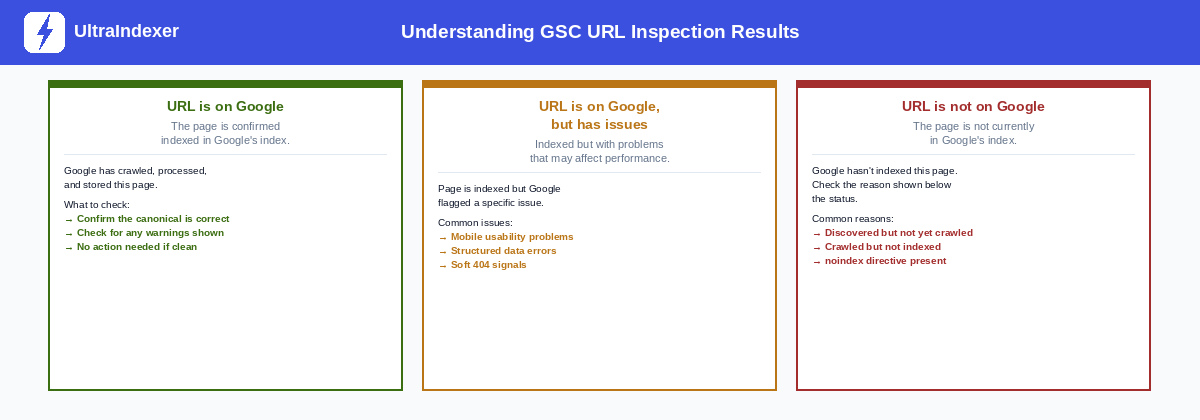
"URL is on Google" means the page is confirmed in Google's index. Check that the Google-selected canonical matches the URL you inspected — if it shows a different URL, Google has decided another version of the page is the canonical. That's worth investigating even when the page is indexed.
"URL is on Google, but has issues" means the page is indexed but Google flagged a problem that may affect how it performs. Common issues include mobile usability problems, structured data errors, and soft 404 signals. The page is indexed — the issue is with how Google is processing it.
"URL is not on Google" means the page is not currently in Google's index. GSC will show a reason underneath the status. Read the reason carefully — it's specific and actionable. "Discovered — currently not indexed" means Google knows the URL exists but hasn't crawled it yet. "Crawled — currently not indexed" means Google crawled it and decided not to index it, which is a content quality signal. "Excluded by noindex tag" means there's a directive telling Google to skip it.
Indexed data vs Live Test
The default view shows data from Google's index — what Google has stored about the page, which may be weeks old. The Live Test button runs a fresh crawl of the current page. Use the indexed data when you want to know what Google currently has in its index. Use the Live Test when you've made changes to the page and want to see whether the current version is indexable.
Requesting indexing
The Request Indexing button submits the URL for Google to crawl. It does not guarantee indexing — it adds the URL to Google's crawl queue at elevated priority. For pages with strong signals (internal links, traffic, authority), a request typically results in a crawl within 24–72 hours. For lower-priority pages, results vary. You are limited to a set number of requests per day per property — use them for your most important pages.
Method 2 — GSC Page Indexing Report (for your whole site)
The URL Inspection tool checks one page at a time. When you need a view of your entire site's indexing status — after a migration, during a technical audit, or when you suspect a widespread issue — the Page Indexing Report is the right tool.
Find it in Google Search Console under Indexing → Pages. The report categorises every URL Google has discovered about your property into four groups:
Indexed: Pages confirmed in Google's index. This is your working set — the pages that can appear in search results.
Not indexed: Pages Google has discovered but not included in the index. Each reason is listed — crawled but not indexed, discovered but not crawled, noindex, duplicate without canonical, and others. The reasons are specific and tell you exactly what's happening.
The most common reason that warrants attention is "Crawled — currently not indexed." This means Google visited the page and made a deliberate decision not to index it. That decision is usually based on content quality — thin content, duplicate content, or pages Google considers low-value. It's not a technical error; it's an editorial assessment.
Use the Page Indexing Report when you want the full picture of your site's indexing health, not just individual URL checks. For a well-maintained site, the vast majority of URLs should be in the Indexed group. A large "Crawled — currently not indexed" count is worth investigating regardless of whether your rankings look healthy today.
Method 3 — site: operator (for any URL, no login needed)
The site: search operator queries Google directly. Type site:https://example.com/page-url into Google and press Enter. If the page appears in results, it's indexed. If nothing appears, it may not be. The free Google index checkers compared in our 2026 guide mostly wrap this same operator.
This is the fastest method for a quick check on any URL — owned or not — and requires no account or tools.
How to use it correctly
Use the exact, complete URL including the protocol. For a specific page: site:https://example.com/specific/page/. For a whole domain: site:example.com — this returns an estimate of total indexed pages, not a precise count.
Its significant limitations
A blank result does not definitively mean the URL is not indexed. Google's site: operator is known to be incomplete — it shows a subset of indexed pages, not all of them. A page can be in Google's index and still return no results from the site: operator, particularly for lower-priority pages or URLs that haven't ranked for any query recently.
This means the site: operator is useful for a quick positive confirmation — if the page appears, it's indexed — but not reliable for a negative confirmation. If nothing appears, you need a more reliable method to be certain.
For individual checks where accuracy matters, use GSC URL Inspection if you have access. For URLs you don't own where you need a reliable answer, use a bulk index checker — the site: operator alone isn't sufficient.
Method 4 — bulk Google index checker (for third-party URLs at scale)
When you need to check backlinks, client links, supplier deliveries, or any set of URLs you don't own — and you have more than a handful — manual checking doesn't work. The site: operator is unreliable at scale, and GSC doesn't help at all for URLs outside your properties. A dedicated Google index checker built for bulk use is the only practical solution.
When to use it
Backlink audits: Export your link profile from Ahrefs, Semrush, or another SEO tool, upload the URLs to an index checker, and find out how many of your backlinks are actually indexed. Most SEOs discover that a meaningful proportion of their link profile is unindexed — passing zero ranking value — when they run this check for the first time.
Supplier quality checks: When you've purchased or received links, check their index status before paying for more or scaling spend with that supplier. An unindexed link from a supplier is a link that isn't working regardless of the metrics they show you.
Post-campaign verification: After link building work or a backlink indexing campaign, verify which URLs are now indexed before reporting results to a client. Reporting link count without checking index status gives an incomplete picture.
De-indexing detection: Run periodic checks on your existing link profile to catch links that have been de-indexed since you last checked. A site that was indexed when you built the link may not still be indexed six months later.
How the workflow looks in practice
UltraIndexer's bulk index checker accepts up to 5,000 URLs per submission and returns a per-URL report with a timestamp for each check. Credits never expire, so you can run checks on your schedule rather than against a monthly reset.
What to do when a URL isn't indexed
The right next step depends on whether you own the page or not.
For pages you own
Read the GSC reason first. GSC gives you the specific reason — don't guess or apply generic fixes until you've read it.
"Discovered — currently not indexed" means Google hasn't crawled it yet. Add internal links from high-authority pages on your site pointing to this URL. Submit it via GSC URL Inspection — see our guide on how to submit a URL to Google for indexing step by step. Consider whether it's in your XML sitemap.
"Crawled — currently not indexed" is the harder case. Google visited the page and decided not to index it. The usual reasons are thin content, low-quality content, or pages that duplicate content that exists elsewhere on your site. The fix is improving the page significantly — adding depth, original insights, or unique data — not just resubmitting the same content.
"Excluded by noindex tag" means there's a <meta name="robots" content="noindex"> tag on the page, or the page is being excluded via your CMS's indexing settings. Remove the noindex directive if the page should be indexed, then submit it via GSC.
For backlinks you don't own
Check whether the linking page itself is indexed first. Run site:[linking-page-url] or use a bulk checker on the linking page URL. If the page isn't indexed, no amount of resubmission will help — the link has no path to being processed until the page enters Google's index.
Confirm the link is still live. Visit the URL directly. Check that the page loads, your link is present in the content, and it hasn't been moved to a footer or removed.
Resubmit via a backlink indexing service. If the linking page is indexed and the link is live but the backlink isn't being indexed, a dedicated indexing service can help by sending crawl signals to the linking page. Use a drip feed schedule rather than bulk submission — see our guide to drip feed indexing for the reasoning.
Accept that some links won't index. A small proportion of backlinks on genuinely low-quality pages will not index regardless of what you do. Write them off and focus energy on the ones that can be recovered.
How often should you check URL indexing status?
The right frequency depends on what you're monitoring.
Your own site: Review the GSC Page Indexing Report monthly as a baseline health check. After publishing new content, check indexing at 7 days using URL Inspection. After a site migration, run a full comparison within the first 48 hours and again at 14 days.
Backlink campaigns: Check 7 days after a campaign completes. This gives time for the indexing service to process submissions and for Google to respond to the crawl signals. Re-check at 14 days and triage any remaining unindexed URLs at that point.
Ongoing link profile monitoring: Run a full bulk Google index checker pass on your link profile quarterly. Links that were indexed when you built them may have been de-indexed since — a site can be penalised, go offline, or have its content removed at any time after you built your link there.
Red flags that trigger an immediate check: A significant drop in organic traffic, a Google algorithm update, or any notification in GSC about manual actions or crawl errors are all reasons to run an immediate indexing check before doing anything else. Don't assume the issue is rankings-related until you've confirmed your pages are still indexed.
Frequently asked questions
What's the fastest way to check if a URL is indexed by Google?
For a page you own, GSC URL Inspection gives a result in seconds and is the most accurate option. For a URL you don't own, the site: operator is fastest — type site:[full URL] into Google. Bear in mind that the site: operator can miss indexed pages, so a blank result isn't a definitive "not indexed."
Can I check if a URL is indexed without Google Search Console?
Yes. The site: operator works without any account. A dedicated bulk index checker also works without GSC access and is more reliable than the site: operator for URLs you don't own. GSC is only available for properties you've verified ownership of — it cannot be used to check third-party URLs.
What's the difference between a URL being indexed and being cached?
Indexed means Google has processed and stored the page in its search index — it can appear in search results. Cached was a separate feature that let you view a stored copy of a page as Googlebot saw it during its last crawl. Google removed the cache feature in early 2024. Indexing is what determines whether a page appears in search. Caching was a secondary display feature and is no longer available.
How do I check if 500 backlinks are indexed without doing it manually?
Use a bulk Google index checker. Export your backlink URLs from your SEO tool, upload them as a CSV, and get a per-URL indexed or not indexed result for all 500 in one pass. Manual checking via the site: operator at that scale is impractical and unreliable. UltraIndexer's bulk index checker handles up to 5,000 URLs per submission with per-URL results and a downloadable CSV report.
A URL shows as indexed in GSC but doesn't appear when I search for it — why?
Being indexed does not guarantee appearing in search results. GSC confirms that Google has processed and stored the page. Whether it appears for a given search query depends on your page's relevance to that query, its authority relative to competing pages, and many other ranking signals. Additionally, GSC's URL Inspection shows indexed status for a property you own — if someone else searches for your page, personalisation and other factors may affect what they see. For a definitive check of whether your page appears, search for the exact URL enclosed in quotation marks.
Need to check the indexing status of your backlinks at scale? UltraIndexer's bulk index checker accepts up to 5,000 URLs per submission and returns a per-URL indexed or not indexed report with timestamps. Credits never expire.
If your backlinks aren't indexed, see our guide to how to index backlinks fast — including the methods that work, the ones that don't, and a decision matrix for choosing the right approach.